How To Rearrange The Order Of Mail Accounts in Mac OS High Sierra
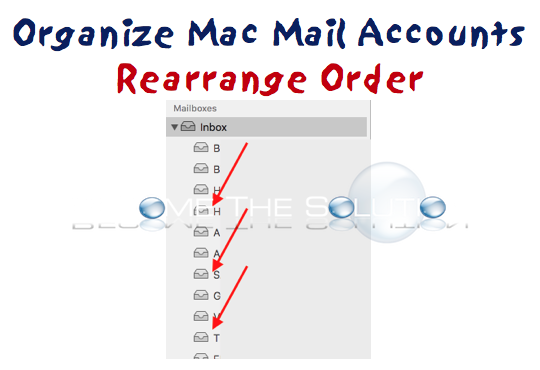
The updated method to re-arrange the Mac X mail accounts in Mac OS High Sierra - please see below.
Open Mac Mail. Where your accounts shows up under "Inbox", simply highlight any account and drag it accordingly. See picture below.
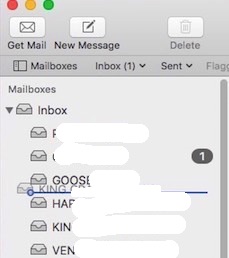
Old Version
No longer can you drag and drop your mail accounts in an order within Mac Mail. There is a trick to get the order of your mail accounts to stay in an order you define.
In Mac Mail, open Mail -> Accounts
Click on each Mail account, and then uncheck the Mail option in the panel to the right. Then, go through each mail account again, and re-check the Mail option, in the order in which you want them to appear in the drop down menu.
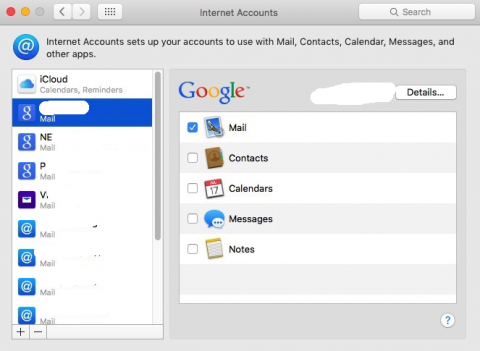
If you wanted your Yahoo account to show up first, make sure that’s the one you check in the Internet Accounts preference pane. Check the next account you want to show up in the list next, and so on. Eventually, your accounts will all be checked off – and then checked back on in the correct order.
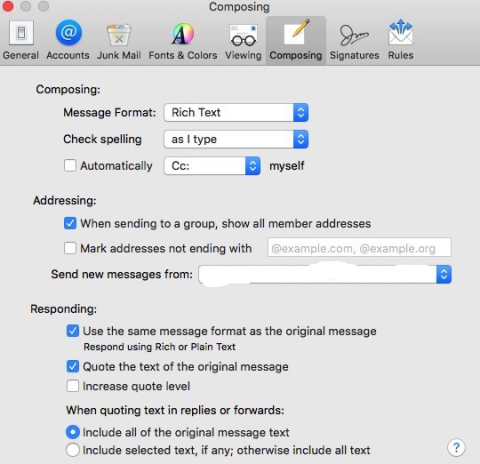
Remember, to change the default mail account you send from go to
Mail -> Preferences -> Send New Messages From