How to use eGPU with Mac Mini + Windows Boot Camp + macOS Catalina 10.15.X (Pure eGPU)
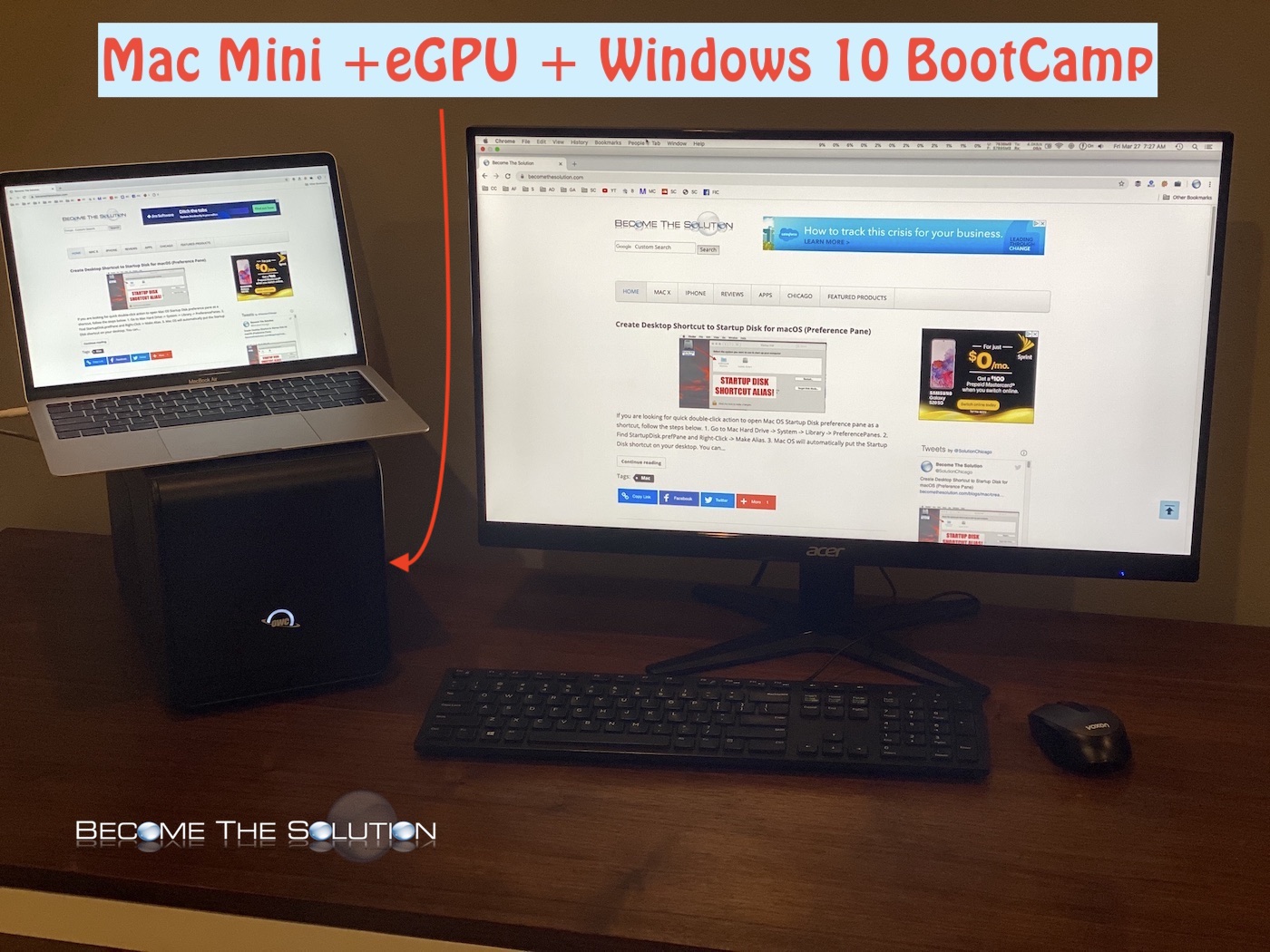
In this guide, we setup a OWC Mercury Helios FX 650 eGPU (external graphics processing unit) chassis using a Radeon RX 580 8GB GDDR5 graphics card installed on a 2018 Mac Mini. This setup includes using the eGPU as the main video card for the Mac Mini (Windows Boot Camp and macOS).
This guide should work the same for any eGPU that is compatible with macOS including Apple’s BlackMagic, Sonnet Breakaway box, Razer Core, Akitio Node, StartTech, and PowerColor Mini Pro. Please share success stories for other eGPU’s in the comments below.
Mac Mini Configuration (Maxed out 2018 Version):
2018 Mac Mini 3.2 GHz 6-Core
64 GB 2667MHz Ram
2 Terabyte SSD
macOS Catalina 10.15.4
Windows 10 1909 (Build 18363.720) Boot Camp
OWC Mercury Helios FX 650
Radeon RX 580 8GB GDDR5 installed
Getting Started –
Leave your eGPU UNPLUGGED for now.
1. Use Boot Camp Assistant to create your Windows partition. Download the latest version of Windows 10 64-Bit from the Microsoft site here and install.
2. Once Windows is installed, run Windows system updates and ensure it is up to date. (Several users online argue against this, but installing the latest updates for Windows as of this article worked fine in our case).
3. Next, (still booted in Windows) go to BootCampDrivers and download the Windows drivers for your graphics card. In our case, we used Adrenaline Red Gaming Edition (Best FPS).
4. Next, (still booted in Windows) plug in your eGPU to the Mac Mini via Thunderbolt connection. Windows may attempt to install drivers for the eGPU automatically…you can cancel this.
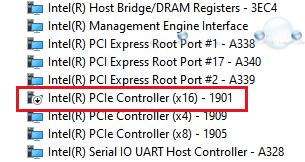
5. Next, (still booted in Windows) if you are running a Mac Mini 2018 disable the Intel(R) PCIe Controller (x16) – 1901 port in Windows device manager. You will need to disable this port or Windows may fail to boot properly. See below.
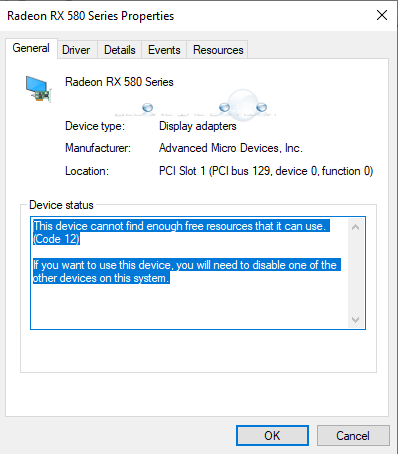
6. Next, (still booted in Windows) install the BootCampDrivers you downloaded in step 3. Your graphics card might show in Windows device manager but with a yellow icon and a Code 12 error. This is ok. However, if the drivers fail to install because no card is recognized, plug the eGPU into another Thunderbolt port on your Mac, or reboot to Windows again and hot plug your eGPU.
7. Unplug the eGPU and boot back to macOS. We need to disable macOS boot security next.
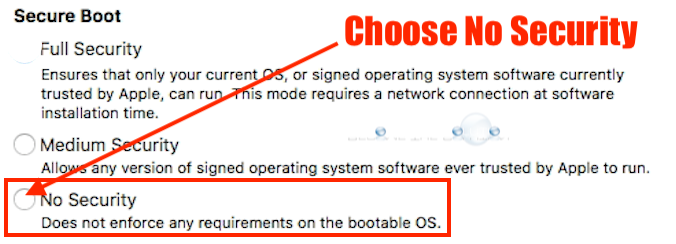
8. Boot to macOS recovery mode and go to Utilities -> Startup Security Utility. Choose No Security under Secure Boot.
9. Boot back to macOS.
Next, we are going to install a custom configured efi boot file for Windows BootCamp to recognize the eGPU on boot.
10. Download and install Clover Configurator for Mac OS X. If you get the “can’t be opened because of” error, see this article.
11. Download and unzip apple_set_os.efi (bootx64.efi) v0.5 from here or here.
12. Open Clover Configurator select Mount EFI -> EFI on BOOTCAMP -> Mount Partition.
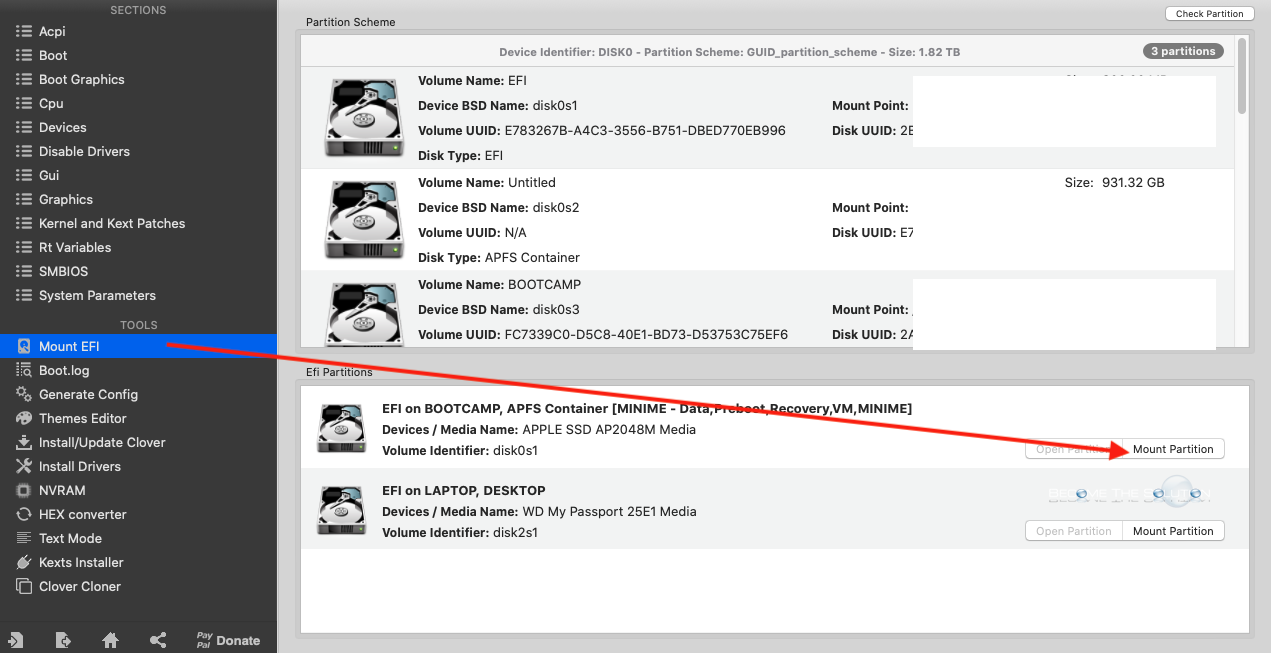
Enter your macOS password.
13. On your Desktop, open EFI Drive/EFI/Boot/.
14. Rename bootx64.efi to bootx64_original.efi.
15. Copy the bootx64.efi you downloaded to /EFI/Boot.
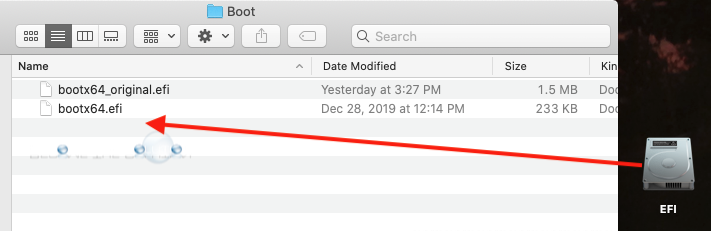
16. Reboot to macOS.
17. Set the startup disk to Windows BOOTCAMP and shutdown your Mac Mini.
18. Plug in your eGPU via Thunderbolt to your Mac Mini and connect your monitor(s) to the eGPU graphics card video outputs (HDMI, DVI, Display Port).
19. Finally, boot the Mac Mini. You may not see the Windows boot logo during this time and your monitors may loose video signal briefly. In a minute or so, your Windows 10 desktop should appear.
Note: Ensure your Mac Mini is not connected to any other monitor sources other than the eGPU. Otherwise, it may cause display issues when you boot. You want to avoid using the Mac Mini’s onboard Intel Graphics.
To switch booting between macOS and Windows Boot Camp, use Startup Disk in macOS and Boot Camp Utility (located in Control Panel) in Windows.
Please use the comment form below if you have issues OR can share a success story with another eGPU and graphics card.