Repair Corrupted OST File Outlook

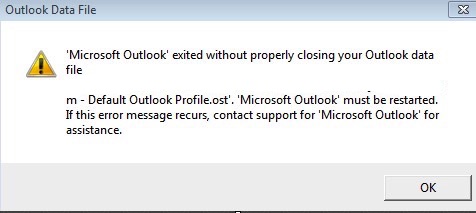
If you forcefully quit Microsoft Outlook, you may have corrupted your .OST or .PST files and get prompted with the following error messages.
Microsoft Outlook exited without properly closing your Outlook data file. Microsoft Office must be restarted. If this error message recurs, contact support for Microsoft Outlook for assistance.
And…
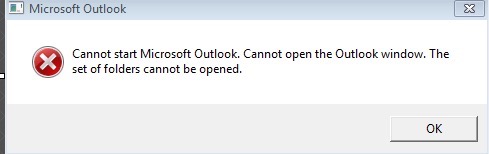
Cannot start Microsoft Outlook. Cannot open the Outlook window. The set of folders cannot be opened.
You will need to run Microsoft Outlook Repair Tool executable Scanpst.exe on either or both your OST and PST files.
Locate Scanpst.exe in your Office Programs folder.
C:\Program Files (x86)\Microsoft Office\Office14

(The actual Office directory for scanpst.exe may vary Office10/Office12/Office14/Office15)
Open Scanpst.exe and locate your OST file: C:\Users\user\AppData\Local\Microsoft\Outlook
(OST files may be in different places based on what your Outlook Admin decided)
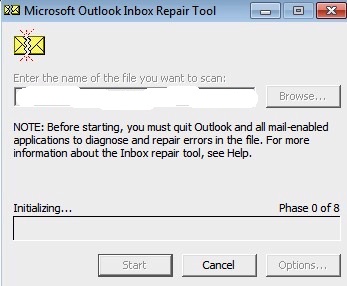
Ensure process UCmapi.exe is not running as it will have your OST open and prevent repair. End the process if necessary
Run ScanPst and wait for the 8 tests to repair your file.
If your OST resides on a network share, you may receive the following error message
An unexpected error prevented access to this file. Use a disk error checking program to check the disk, and then try using the Microsoft Outlook Inbox Repair Tool again.
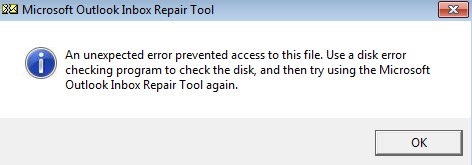
Drag your OST to a local environment and scan it that way.
You may also need to remove any attached PST files from your Outlook profile if they too were corrupted. Do so by going to Start -> Control Panel -> Mail (32-bit) -> Data Files and remove the associated PST files here.