Fix: Excel Ran Out of Resources While Attempting To Calculate One or More Formulas

You receive a pop-up message in Microsoft Excel when you open an Excel workbook containing formulas and calculations.
Excel ran out of resources while attempting to calculate one or more formulas. As a result, these formulas cannot be evaluated.
It appears Hyper Threading causes Excel to produce this error even if your workbook is small. The easiest solution however is not to disable hyper threading, but to reduce the number of parallel cores Excel is using when you have the workbook open.
- While Microsoft Excel is open, open Windows Task manager.
- In Windows Task manager, select Processes tab and find EXCEL.EXE*32 -> right-click and choose Set Affinity…
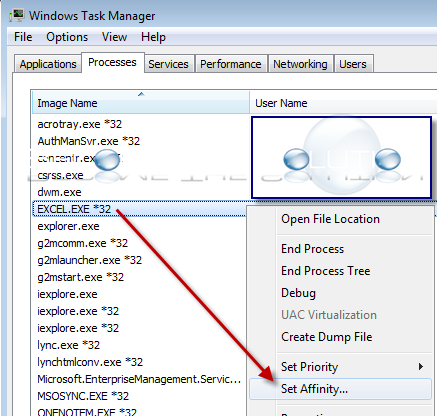
- Finally, de-select <All Processors> and select one CPU core and click OK.
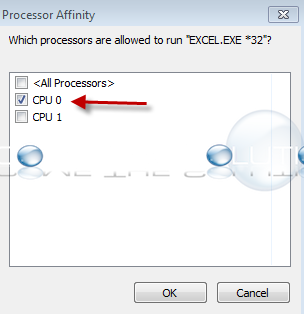
Test your Excel Workbook after you make the change. You can continue to add cores to Excel this way if you need additional performance, but be aware adding more cores may bring back the error message.